Add Case Information
Information added on the Create New panel automatically populates in the Main panel of the application input page.
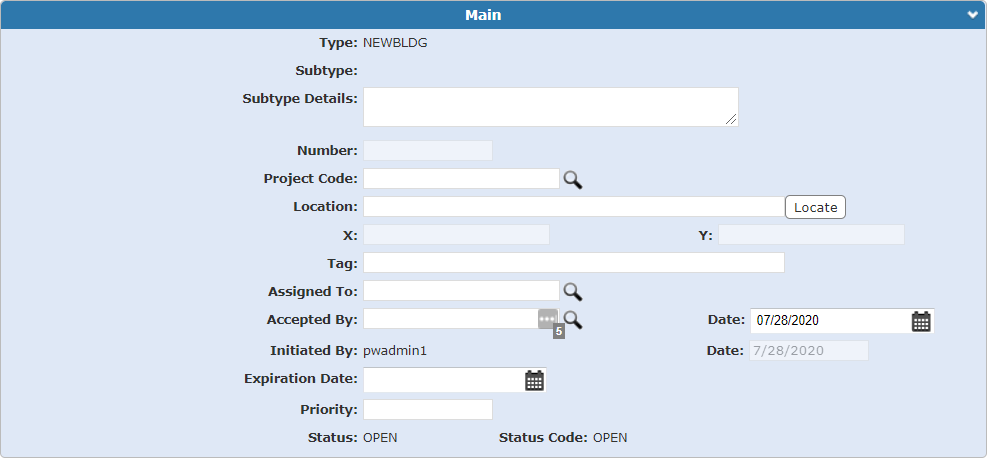
The Type and Subtype fields are populated with information entered during the creation of the case and cannot be changed.
- Enter Subtype Details about this case, if desired.
- A Number is automatically assigned to the case when it’s saved.
- You can enter a Project Code here if you did not enter a Project Code on the Create New panel.
- You can enter a Location here if you did not enter a location on the Create New panel. To populate the X and Y fields, geolocate the address by
 NOTE: A Map Layer section appears (after the X and Y fields) if map layers are configured by the administrator for the case template and they have been mapped and selected when you added an address. The Map Layer section does not appear during the application input process or if you edit the Main panel from the summary page. It only appears when viewing the Main panel on the summary page. See Configure GIS Data on a Case Template in the PLL Admin for 15.8 Guide for more information.
- Enter a Tag if desired. A tag is a free-form label for the activity this case is associated with. It can be useful in tracking and organizing large projects that comprise many different cases.
The Accepted By and Date fields are populated with information from the Create New panel, but can be changed, if desired.
The Initiated By and Date fields are automatically populated and cannot be changed.
-
- Enter a Priority for the case.
The Status and Status Code fields are automatically populated and cannot be changed. These are configured by the administrator.
NOTE: Business licenses include five additional fields on the Main panel to enter information about the business, such as state and federal ID numbers. See Add Business License Information for more information.
See Main Panel Fields for an explanation of the Main panel fields.